









Skip to the tools
JG_JustTools.

The everyday toolbox

Just get
it done.

The little jobs add up. JustTools puts 25 everyday utilities in one Rust binary, so you can convert a file or untangle a development problem and get back to work.

Windows · macOS · Linux x64 + ARM64

YOUR NEXT “THERE'S A TOOL FOR THAT”
>_ justthe everyday toolbox
25 utilities. One Rust binary.

Pick an icon. Meet the tool.

25everyday utilities
3shell helpers
1portable Rust binary
Open source. MIT licensed.

01 / The directory

Meet the
whole toolbox.

Every tool has a job. Find yours by name or by what you're trying to do, then grab an example to try in your terminal.

Images

JustOptimize

#

Let the smallest format win.

Tries real PNG, WebP, and JPEG encodes, then picks the smallest useful result. Transparent images stay transparent. Handy when you want a lighter image without guessing the format.

justoptimize hero.png
What to expect

Keeps the source and writes a smaller result as hero-optimized.<format>. JPEG is excluded when the image needs transparency. No external encoder is required.

Command guide


Images

JustResize

#

Make it the right size.

Fits an image inside your chosen dimensions while keeping its proportions. Set a width, a height, or an exact crop. Smaller images stay small unless you ask to upscale.

justresize photo.jpg --width 1200
What to expect

Keeps the source. The default fits within 1920 × 1920. Add --crop with both width and height for an exact centered crop.

Command guide

Images

JustCrop

#

Lose the empty edges.

Trims transparent space around the visible artwork. For a folder of animation frames, shared bounds give every frame the same canvas so the subject stays in place.

justcrop logo.png
What to expect

Keeps the source and its format. Every nonzero-alpha pixel counts by default. Use --shared-bounds for aligned animation frames.

Command guide

Images

JustRMBG

#

Keep the subject. Drop the background.

Cuts out a subject with local BRIA RMBG-2.0 inference and saves a transparent PNG. Auto mode prefers acceleration and reports when it needs CPU support or a fallback.

justrmbg portrait.jpg --download
What to expect

Keeps the original and writes portrait-nobg.png. --download allows the pinned runtime and model download. BRIA model weights need a separate license for commercial use.

Command guide

Images

JustJPG

#

A JPEG ready for the web.

Creates a progressive JPEG with sensible quality settings and optimized encoding. Transparent inputs get a white background, or a color you choose. The original stays beside the result.

justjpg photo.png
What to expect

Default quality is 85. Writes photo-optimized.jpg and strips metadata. JPEG cannot store transparency; --background sets the fill color.

Command guide

Images

JustPNG

#

Put that PNG on a diet.

Runs PNGs through pngquant to reduce their size. Use it on one image or a folder, with an output directory when you want to keep the originals alongside the optimized copies.

justpng art.png --output optimized
What to expect

Uses pngquant quality 65–90 by default. With no --output, replaces the source only when the result is smaller. Animated PNGs are rejected.

Command guide

Images

JustWebP

#

Smaller images, familiar format.

Converts still images to compact WebP files for websites and apps. Choose a separate output folder to keep a full set of originals while you prepare the web versions.

justwebp photo.png --output web
What to expect

This example keeps the source. Without --output, the source is removed only after a smaller WebP is safely installed. Animated and multi-page inputs are rejected.

Command guide

Images

JustAVIF

#

Give your photos the AVIF treatment.

Encodes opaque still images as AVIF with adjustable quality and speed. It checks the resulting size before removing a source, and refuses inputs whose transparency or animation would be lost.

justavif photo.jpg --output web
What to expect

This example keeps the source. Defaults are quality 60 and speed 6. Without --output, the original is removed only after a smaller AVIF is safely installed.

Command guide

Audio & video

JustVideo

#

Get the clip ready to share.

Turns a local video or a media URL into a streaming-ready H.264 MP4. Pick a resolution from 480p through 4K, or keep the source dimensions. It never upscales the video.

justvideo clip.mov --resolution 1080p
What to expect

The default is 720p, CRF 28, with AAC audio. Writes clip-web.mp4 and keeps local inputs. FFmpeg and yt-dlp download automatically when needed, with vendor checksum verification.

Command guide

Audio & video

JustAudio

#

Take the sound with you.

Extracts a video's soundtrack or converts an audio file to compact AAC/M4A. Media links work too: yt-dlp downloads the source, then the same audio settings do the conversion.

justaudio interview.mp4
What to expect

Defaults to AAC-LC at 160 kb/s and 48 kHz. Local sources are kept. URL inputs need yt-dlp; conversion needs FFmpeg.

Command guide

Audio & video

JustMP3

#

An MP3 for almost anything.

Creates a high-quality MP3 from audio, video, or a media URL. Useful for a soundtrack you want to listen to, or a recording that needs to play on a wider range of devices.

justmp3 recording.wav
What to expect

Uses LAME variable bitrate at quality 2 and 48 kHz. Keeps local sources. FFmpeg handles conversion; URL inputs also use yt-dlp.

Command guide

Audio & video

JustWAV

#

Bring it into your editor.

Converts audio or a video's soundtrack to an editing-ready WAV. It also accepts media URLs when the recording you need lives online. You get an uncompressed file for the next step.

justwav recording.m4a
What to expect

Defaults to stereo 16-bit PCM at 48 kHz. Keeps local sources. FFmpeg handles conversion; URL inputs also use yt-dlp.

Command guide

Documents & data

JustJSON

#

Make sense of the curly brackets.

Formats messy JSON, validates a file, or pulls out one nested value. Minify it for transport or sort the keys for a cleaner diff. Piped input prints the result straight to stdout.

justjson data.json --get user.name
What to expect

--get prints a value; --check validates without writing. Formatting files is in place by default. --output writes copies; --dry-run previews changes.

Command guide

Documents & data

JustPDF

#

The PDF jobs, in one command.

Inspect a PDF, merge documents, or pull out the pages you need. It can rotate pages and save embedded images or links too. Input PDFs are always kept intact.

justpdf extract --pages 1-3 guide.pdf
What to expect

Page numbers start at 1; ranges can include last. Outputs go beside the input unless --output chooses another location. --dry-run previews the plan.

Command guide

Documents & data

JustSVG

#

Clean up the vector file.

Optimizes SVGs with a Rust-native, SVGOMG-style engine. Its conservative preset preserves the viewBox and IDs, along with titles and accessibility attributes that the surrounding page may rely on.

justsvg logo.svg --output optimized
What to expect

This example keeps the source. Default precision is 3 with multipass optimization. Without --output, a source is replaced only when the optimized SVG is smaller.

Command guide

Documents & data

JustQR

#

Turn a link into a scan.

Makes a QR code from a URL or any text. Save a PNG, choose SVG for a scalable version, or draw it right in the terminal. Size, colors, and error correction are adjustable.

justqr "https://jamesgreene.com"
What to expect

The default is qr.png at 1024 px with error correction Q and a four-module quiet zone. --svg creates a vector; --terminal prints it.

Command guide

Files & clipboard

JustPaste

#

Give your clipboard somewhere to land.

Saves copied images as PNG, copies files, or downloads the links on your clipboard. Windows Smart Paste can bring that behavior to Ctrl+V in Explorer, with optional copy filters.

justpaste --clipboard
What to expect

Existing names are numbered, never overwritten. just paste --enable opts into Windows Smart Paste. Login startup and filters are separate settings; cut/move stays with Explorer.

Command guide

Files & clipboard

JustZip

#

Zip the project, skip the clutter.

Archives files, folders, or a mixed selection. Git working trees honor their ignore rules, so the ZIP leaves out the usual build clutter. Ordinary folders work without Git and include their contents recursively.

justzip project --dry-run
What to expect

This example previews the archive without writing. Sources stay intact. An existing destination ZIP is replaced atomically after the new archive is fully written.

Command guide

Development

JustPorts

#

Where did that dev server go?

Shows running development servers with their project details and lets you open them in a browser. It remembers discovered servers, with launch recipes for bringing a stopped project back later.

justports --snapshot
What to expect

--snapshot is read-only. The interactive view has Running Now and Launch Again areas. Stopping a server requires confirmation and rechecks the process identity.

Command guide

Development

JustPort

#

Find who's sitting on that port.

Looks up a local port's listener and the process behind it. Get a readable answer in the terminal or JSON for a script. An explicit kill option can stop a revalidated, same-user process.

justport 4321 --json
What to expect

Inspection does not stop anything. --kill is explicit and checks ownership and process identity before termination. Use JustPorts for the live multi-server view.

Command guide

Development

JustIP

#

See the address the internet sees.

Reports your public IPv4 and IPv6 addresses together. A missing public route is shown as unavailable. Plain text and JSON output make it easy to use the answer in a script.

justip --json
What to expect

Uses a public lookup service, which sees your public address. -4 and -6 select one family. It writes no files.

Command guide

Development

bunt

#

Get a handle on stray processes.

Inspects Node, Bun, and Python workloads in an interactive process view. Protect the jobs you want to keep, then stop a selected workload or the revalidated set of unprotected processes.

bunt --snapshot
What to expect

bunt is an alias for justbunt. --snapshot only reads. Persistent exclusions protect workloads, and termination rechecks the captured process identity.

Command guide

Development

JustCommit

#

Give the diff a good commit message.

Uses a bounded summary of your changes to write a commit message through OpenRouter. It can create the commit and optionally push. Use --staged to keep it scoped to your current index.

justcommit --staged --dry-run
What to expect

This example proposes a message from the existing index. Without --staged, even --dry-run stages the full working tree. Requires an OpenRouter API key; pushing is explicit.

Command guide

Setup

JustReady

#

Set up the next machine.

Opens a curated software picker filtered for your operating system. Installed apps are marked, and dependencies join the plan. Review the exact install commands before letting native package managers do the work.

justready --list
What to expect

--list only shows the catalog. --install IDS --dry-run previews an install plan. Actual installation may use WinGet, Homebrew, or a Linux package manager.

Command guide
Same binary. Native aliases. Saved defaults.Meet the shell helpers
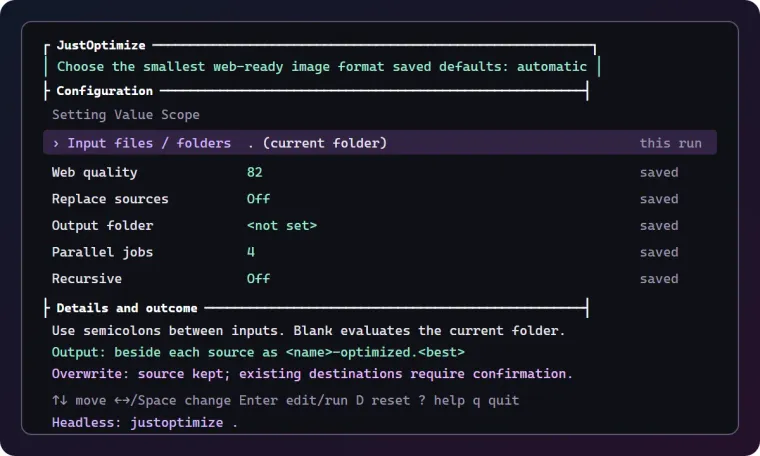
JustOptimize console preview with input, quality, output, and saved settings, plus its equivalent headless command
JustOptimize console preview · from the project docs

02 / Your call

Use it
your way.

01

Open a console

Run a tool without arguments to choose settings with the keyboard. Changed defaults are saved; the footer shows the exact command.

justoptimize
02

Write a command

Pass explicit arguments for direct execution. The same tools fit your scripts and your coding agent's workflow.

just optimize hero.png --dry-run
03

Right-click in Windows

Add the File Explorer menu for file-specific actions, including image conversion and PDF operations. Windows 11's top-level menu needs a signed package or Developer Mode; otherwise, use “Show more options”.

just context install

03 / A few shortcuts

Less typing, too.

Three shell helpers come along for the ride. Windows PowerShell gets them automatically; Bash, Zsh, and Fish use just init.

mkcd

Create a folder and enter it in the same command. Add -p when its parent folders need creating too.

mkcd -p projects/new-idea

Also available as justmkcd. Automatic in installed Windows PowerShell; other shells use just init.

claude_

A shortcut for Claude Code with --dangerously-skip-permissions. Extra arguments pass through to the installed Claude CLI.

claude_

Explicitly bypasses permission prompts. It is a shell helper, not a JustTools AI agent.

codex_

A shortcut for Codex with --yolo. Extra arguments pass through to the installed Codex CLI.

codex_

Explicitly bypasses permission prompts. It is a shell helper, not a JustTools AI agent.

Shell setup & helper guide

04 / Make yourself at home

One install.
Every tool.

The installer chooses your platform's release, verifies its SHA-256 checksum, installs the aliases, and opens JustReady.

Reopen your terminal if the installer adds JustTools to PATH. Then run just to browse the toolbox.

Prefer a download? Get the release

PowerShell

irm https://raw.githubusercontent.com/JustGains/JustTools/main/ready.ps1 | iex

Terminal · Bash / Zsh

curl -fsSL https://raw.githubusercontent.com/JustGains/JustTools/main/ready.sh | sh
just ← your whole toolbox

Windows · macOS · Linux x64 / ARM64